How to Run DeepSeek R1 on Windows with an Unsupported AMD GPU
So you’ve got an AMD GPU that isn’t on Ollama’s official supported list, and you still want to run DeepSeek R1 locally? Yeah, I was in the same boat with my Radeon RX 6600 XT. The good news is that it’s totally possible thanks to a community fork. Here’s how I got it working.
If you want to check whether your GPU is officially supported, here’s AMD’s list. If yours isn’t on there (like mine), keep reading.
Before you start
A few things to take care of first:
- Make sure you have admin access on your Windows machine.
- If you already have the official Ollama installed, uninstall it. The community fork replaces it.
- You’ll need to download some files, so have some disk space ready.
How much VRAM do you need?
My RX 6600 XT has 8GB of VRAM, which worked fine for both deepseek-r1:1.5b and deepseek-r1:7b. If you want to squeeze out better performance, check out the distilled and quantized versions in the Ollama model library. These compressed models can run smoother while using less VRAM.
If you’re curious about the math behind VRAM requirements and how quantization works, this video explains it really well.
Step 1: Install the community Ollama fork
Since the official Ollama doesn’t support our GPUs, we need the community version:
- Uninstall official Ollama if you haven’t already.
- Head to the Ollama for AMD releases page.
- Download the latest
OllamaSetup.exe(I used v0.5.4 at the time, but grab whatever’s newest). - Run the installer. Pretty straightforward.
Step 2: Figure out your GPU architecture
You need to know your GPU’s LLVM target so we can grab the right ROCm libraries:
- Check the AMD GPU Arches list or the ROCm docs (look at the “AMD Radeon” tab).
- Find your GPU model. For the RX 6600 XT, the LLVM target is
gfx1032.
Write that down, you’ll need it in the next step.
Step 3: Download ROCm libraries
ROCm is AMD’s platform for GPU computing. We need some pre-built libraries to make everything work:
- Go to the pre-built ROCm libraries repo.
- Find a release that matches your GPU’s LLVM target (
gfx1032in my case). - Download the ZIP file and extract it somewhere you can find it.
I used v0.6.2.4, though v0.6.1.2 is also a safe bet.
Step 4: Swap out the files in Ollama’s install folder
Now we need to replace a couple of files so Ollama knows how to talk to your GPU:
- Open your Ollama install directory. It’s usually at:
Terminal window C:\Users\[YourUsername]\AppData\Local\Programs\Ollama\lib\ollama - Find
rocblas.dll, rename it torocblas.dll.backup, then copy the new one from the extracted ROCm files. - Now go into the
rocblassubfolder:Terminal window C:\Users\[YourUsername]\AppData\Local\Programs\Ollama\lib\ollama\rocblas - Rename the
libraryfolder tolibrary_backup, then copy the newlibraryfolder from the extracted files.
Step 5: Run DeepSeek R1
The hard part is done. Let’s actually run the model:
- Open a terminal and run:
Terminal window ollama run deepseek-r1:1.5b - It’ll download the model first (might take a few minutes depending on your internet). After that, you’re in a chat interface.
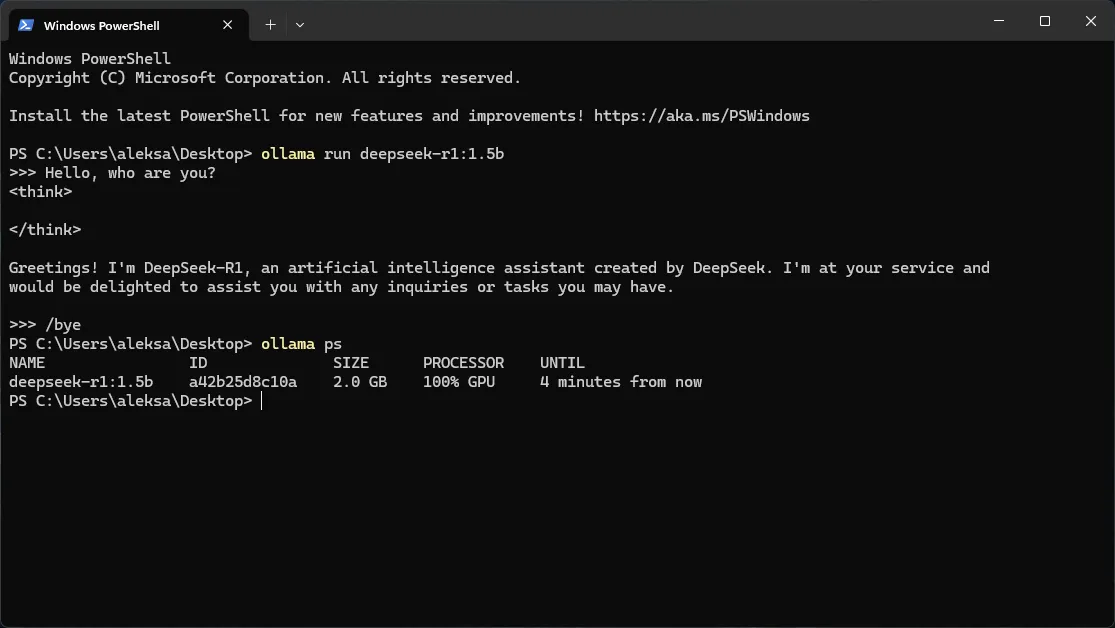
- When you’re done chatting, type:
Terminal window /bye
Step 6: Make sure it’s actually using your GPU
Let’s double-check that the model is running on the GPU and not falling back to CPU:
- Run:
Terminal window ollama ps - You should see something like
100% GPU. If you do, you’re golden.
Some other handy commands:
- See all your installed models:
Terminal window ollama list - Stop a running model:
Terminal window ollama stop deepseek-r1:1.5b - Run with verbose mode to see how fast it’s going:
Terminal window ollama run deepseek-r1:1.5b --verbose
Quick heads up about updates
If you’re using a demo release, don’t click “Update” if Ollama prompts you. That’ll overwrite the community fork with the official version and break everything. Instead, grab updates manually from the releases page.
There’s also a neat tool called Ollama-For-AMD-Installer by ByronLeeeee that handles updates and library swaps with one click.
For another perspective, Major Hayden wrote a one‑page guide to running ollama with an AMD Radeon 6600 XT.
That’s it
Once everything’s set up, you’ve basically got a local AI chatbot running on a GPU that AMD and Ollama said wouldn’t work. Gotta love the open source community. If you run into issues, the Ollama for AMD Wiki has some good troubleshooting info. Happy tinkering!